Branch opening hours
Set service days and windows. Online booking stays closed until opening hours are configured.
Floor design & online reservations
Build a floor plan with real tables and capacity, define bookable times, and follow each guest from selection to seating.
See floor and reservation ratesStart with your mobile number. An active menu is required for floor design and reservations.
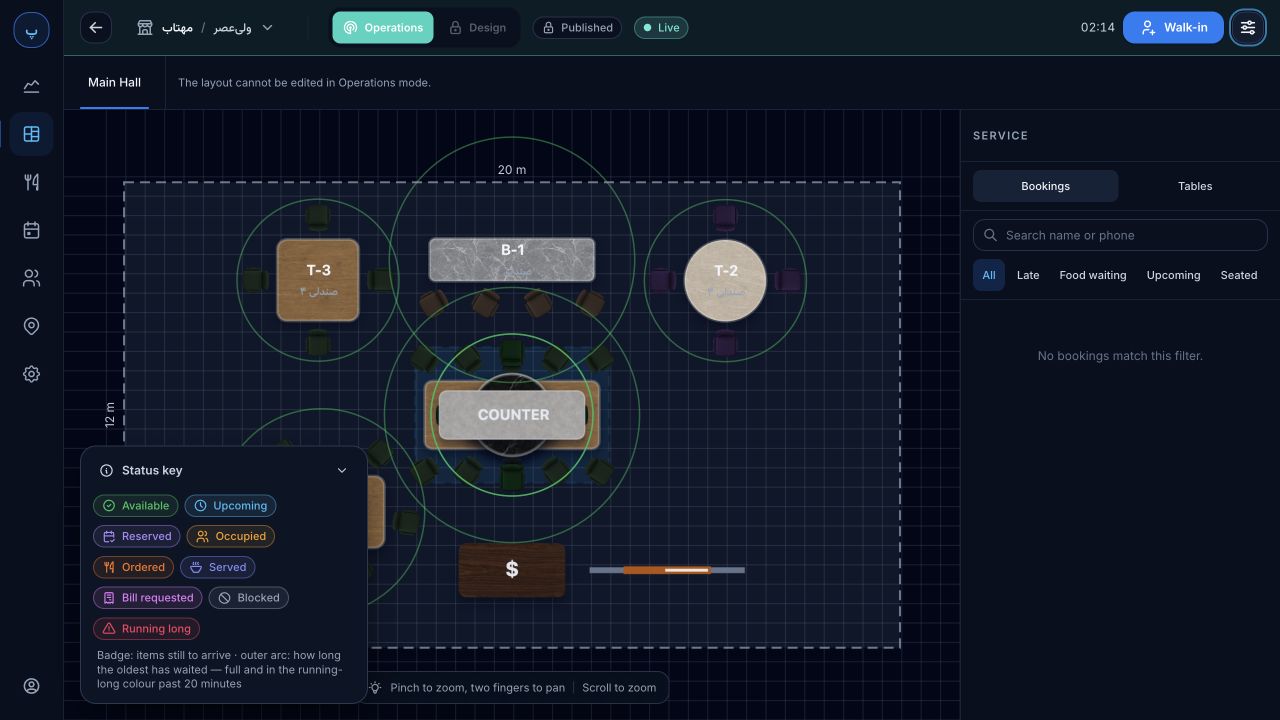
Design to reception
Prepare the layout in the designer. Reception works with the published floor and its capacity.
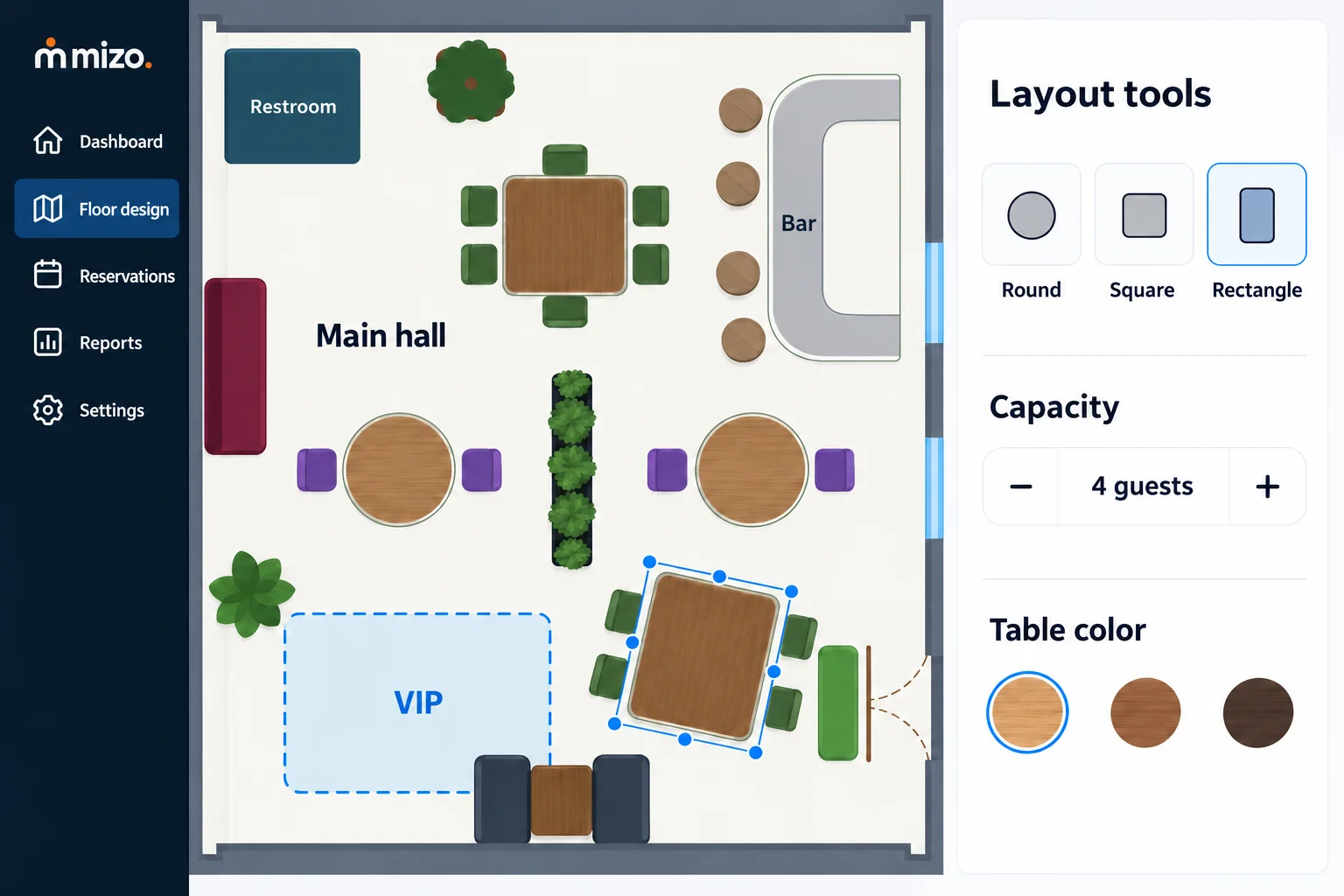
Illustration of floor design; not an exact panel capture.
Arrange tables, chairs, zones, and room elements with your dimensions and colors. Each table’s name and capacity become the basis for booking and seating.
Online booking controls
Opening hours, visit duration, table capacity, and existing bookings determine the times guests can book.
Set service days and windows. Online booking stays closed until opening hours are configured.
Set default table duration and late-arrival grace to match your venue’s routine.
Open bookings from 1 to 14 days ahead, with independent settings for each branch.
Party size, table capacity, bookings, current visits, and blocked tables affect available times.
Guests choose a zone, preferred table, and time. The host makes the final table assignment at reception.
Search guest names, tables, or notes, filter by status and zone, and record cancellations or no-shows.
Guest and host journey
Guests see the published floor and tables suitable for their party size.
Guests choose a date and time. Availability is checked again when the booking is submitted.
Guests see their own bookings and can cancel an active booking before seating.
The host connects the booking to a table visit and can assign another suitable table when needed.
Service controls
Record a group’s name and size. Waiting time and suitable table suggestions help the host decide.
Move guests to another table or extend a visit, with a warning when it overlaps the next booking.
Record cancellations and no-shows, and exclude out-of-service tables from usable capacity.
Reservation reports
Review each branch over a selected date range and export CSV for further analysis.
Reservation reports cover online and phone bookings. Walk-ins and the waitlist are excluded from these totals.
For one branch
Digital Menu is required. Choose Standard or Pro.
Full term total · 3 months
Before discount: 2,700,000 toman
Approximate monthly equivalent: 810,000 toman
Applied discount: 10%
This total excludes Floor design; no public rate is published for it.
A digital menu is required. Pro replaces the Standard menu price. Activation is checked after sign-in.
Start with your mobile number. Prepare your menu, then activate floor and reservations.
Before setup
Setup for your venue
Sign in with your mobile number, prepare your venue menu and continue to floor design. Review costs before activation.